Datamosh Looks Wrong? 5 Fixes That Actually Work (Free)
When a datamosh effect goes right, it creates mesmerizing liquid transitions and pixel-dragging trails. But when your datamosh looks wrong, you end up with an unreadable soup of gray blocks, frozen frames, or flat compression noise that ruins your video edit. Understanding why datamosh renders fail—and how to fix them—is the fastest way to rescue your project.
 BEFORE
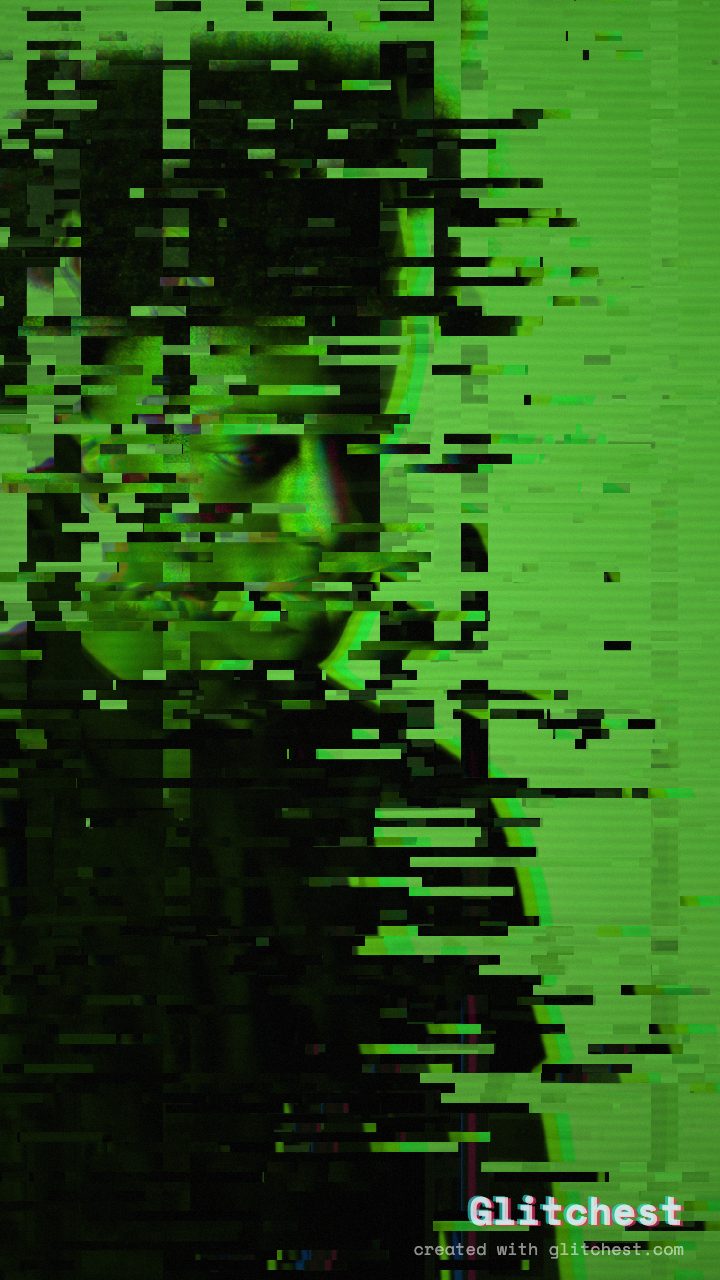 AFTER
AFTERWhy Your Datamosh Effect Looks Wrong
Datamoshing works by manipulating video compression elements, specifically I-frames (keyframe images containing full visual data) and P-frames/B-frames (delta frames tracking directional motion). If you want to dive deeper into the mechanics of compression errors, check out our breakdown of what datamosh is. When an algorithmic datamosh filter turns out flat or muddy, it usually stems from these common mistakes in motion, intensity, or timing.
1. Lack of Distinct High-Contrast Motion
The most common reason a datamosh looks weak or static is static source footage. Delta frames rely on strong directional movement to smear pixels across the screen. If your subject moves too slowly or stands against a low-contrast background, there are no strong vectors to drag forward. Without contrasting movement, the glitch looks like low-quality stream buffering rather than a intentional pixel melt.
2. Running Max Intensity Across the Entire Clip
Pushing glitch controls to maximum power across an entire clip creates total digital chaos, but it quickly loses visual impact. Datamoshing relies on contrast between clean footage and corrupted motion vectors. Constant maximum intensity wipes out subject recognition immediately, turning your frame into an unreadable wall of gray blocks.
3. Overlooking Spatial Masking
Not every part of your frame needs to distort simultaneously. When the entire canvas smears equally, viewers lose track of the main focal point. Applying effects uniformly across dynamic foregrounds and still backgrounds breaks the illusion of localized digital decay.
4. Poor Timing on Keyframe Triggers
In traditional video compression bending, removing keyframes right during a fast camera whip-pan produces dramatic liquid trails. Triggering the effect during a slow freeze-frame or static shot results in frozen block artifacts instead of dynamic motion blending.
5. Mismatched Resolution and Scale Settings
Drastically different pixel densities or mismatched video aspect ratios can cause glitch algorithms to render coarse, giant square blocks instead of fine pixel trails. Normalizing clip scaling ensures motion vectors distribute uniformly across the frame.
How to Fix Your Datamosh in Glitchest: Step-by-Step
Instead of manually corrupting raw video files with command-line tools and risking ruined assets, you can achieve clean compression glitches directly in your browser. Follow this exact workflow inside the editor to fix muddy renders and achieve professional results.
- Import high-motion footage: Launch the editor and load a video clip with clear subject movement, camera pans, or action cuts.
- Select the Datamosh preset: In the presets panel, choose Datamosh as your base effect. This configures core pixel-smearing algorithms without permanently destroying your source file.
- Time the intensity with effect boxes: Instead of leaving glitch power static, add a + Effect box and drop a short box right where the movement is fastest, with little or no fade so the mosh snaps on during the action and stays off during still moments.
- Isolate subjects with shape masking: Add a rectangle or ellipse mask to contain pixel dragging to specific regions—like a running athlete or moving car—leaving the background clean for high visual contrast.
- Add texture with the Time Machine dial: Turn the Time Machine dial to layer subtle analog tape grit or digital decade compression over your mosh, unifying distorted pixels with realistic texture.
- Export losslessly: Click export to render an MP4 video via WebCodecs for ultra-fast processing, or capture high-resolution stills using Save Frame PNG.
Troubleshooting Specific Visual Errors
If your render produces specific unwanted visual artifacts, match your issue to these fast fixes:
- The image turns completely gray or green: Your intensity threshold is set too high for too long. Shorten the effect box or add a fade so reference frame data refreshes periodically.
- Pixels freeze instead of smearing: Your clip lacks sufficient directional movement. Select a segment with faster kinetic motion or apply a pan transition before the mosh trigger point.
- The subject vanishes into background noise: Apply an ellipse or rectangle mask over the subject. Masking forces pixel-dragging vectors to stay anchored inside the designated zone while keeping background geometry stable.
Pro Tips for Balancing Compression Glitches
To keep glitch edits looking intentional rather than broken, combine datamoshing with controlled secondary stylization. Pairing motion smearing with mild CRT scanlines or subtle chromatic shift frames digital tears inside an aesthetic retro shell. For a comparative overview of corruptive techniques, read our guide on databending vs datamoshing.
By pacing intensity with short, faded effect boxes, using localized shape masks on dynamic subjects, and selecting source clips with high kinetic contrast, your datamosh renders will consistently look clean, punchy, and professional.
The exact settings
Start from the Datamosh preset, then set:
| Strength (master) | 52 |
| Glitch Rate | 42 |
| Glitch Width | 48 |
| Block Size | 42 |
| Chaos | 42 |
| Datamosh (trail) | 28 |
| Horizontal Wave | 14 |
| Vertical Wave | 10 |
| Vertical Shift | 30 |
| Vertical Shake | 18 |
| RGB Split | 54 |
| Hue Shift | 26 |
| Noise | 10 |
| Scanlines | 15 |
| Flicker | 12 |
Everything else stays at its default — tweak it, then copy your own look as JSON or a link from inside the editor to share it.
Try it now — add this look to your own clip, free and in your browser.
Open the editor →FAQ
Why does my datamosh video turn completely gray?
This happens when keyframe information is removed for too long without sufficient motion vectors to update pixel colors. Use a shorter effect box, or add a fade so the effect eases off and reference frames can refresh.
Do I need to manually corrupt video files to fix a bad datamosh?
No, you do not need command-line tools or file-bending scripts that destroy source files. Browser tools like Glitchest apply real-time non-destructive datamosh effects directly to your footage.
How can I prevent my datamoshed subject from becoming unreadable?
Use localized ellipse or rectangle masking to restrict pixel dragging to motion areas. Combining shape masking with short, faded effect boxes maintains focus on subject details.