How to Make a Glitch Discord PFP That Loops
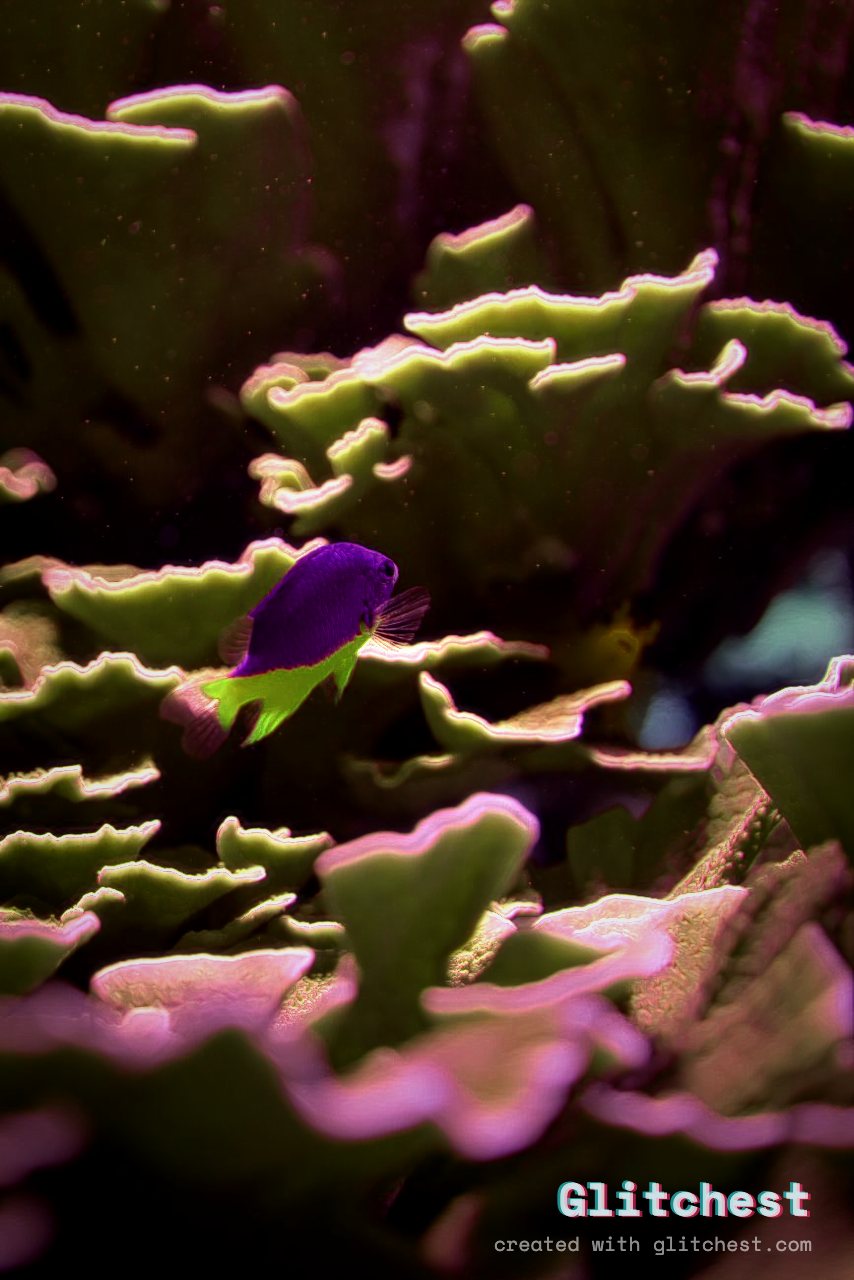
A custom animated avatar is one of the quickest ways to make your profile stand out in Discord channels. By applying digital distortion, CRT scanlines, and RGB splits to an image or short video clip, you can craft a striking animated avatar that catches everyone's eye when you drop a message.
Why Glitch FX Work So Well for Discord Avatars
Discord profile pictures display in relatively small circular or square icons across desktop and mobile screens. Because of this limited real estate, subtle color grading often gets lost. High-contrast digital artifacts, twitching RGB channels, and sudden pixel shifts command instant attention without cluttering the frame.
When you create a looping glitch avatar, the key is balancing motion and clarity. You want your avatar's core subject—whether it is an anime character, a gaming logo, or a portrait—to remain recognizable while periodic glitch bursts add motion and personality.
How to Make a Looping Glitch Discord PFP (Step-by-Step)
Creating an animated glitch avatar used to require complex desktop video editing suites, plugin installs, and lengthy rendering times. With modern browser technology, you can build, preview, and export a complete looping animation entirely inside your browser without uploading your files to any external server.
- Prepare Your Source Asset: Start with a high-resolution square image (such as 800x800 pixels) or a short 2-to-4 second video clip. Discord scales avatars down to 128x128 pixels, but starting with a crisp square source guarantees sharp results. If you are starting from a still image, check out our guide on how to glitch a photo for composition tips.
- Load Your Asset into the Editor: Open the editor and drag your image or clip into the canvas. Because processing happens locally on your machine, your file remains private, and there are no required account logins.
- Choose a Base Preset: Pick a preset from the sidebar to establish your core look. Choose Cyber Glitch for sharp digital tearing, Y2K for early digital webcam artifacts, Signal Jam for heavy static interference, or Broken Monitor for harsh line distortions.
- Build Your Effect-Box Timeline: To turn a static image into an animated loop or to control video glitches, drop effect boxes onto the timeline lanes. Place short effect boxes across the timeline to create sudden, high-intensity glitch hits. You can layer multiple effect boxes on separate lanes to combine different distortions like noise and color shifts simultaneously.
- Shape the Loop with Box Fade-Ins and Fade-Outs: Double-click or select an effect box on the timeline to set its entry and exit fade times. By fading an effect box in and out mid-timeline, the start and end frames of your sequence remain clean or identical, creating a smooth visual loop when played on repeat in Discord.
- Apply Masking and Analog Dial Styling: Use the ellipse or rectangle masking tool if you want to keep your avatar's main face or center logo clean while confining intense glitch effects strictly to the background. Turn the Time Machine dial to add a warm, aged film texture or CRT glow across the clip.
- Export Your Looping File: Play back your project to ensure the animation loops smoothly from end to beginning. Click export to generate an MP4 video powered by fast WebCodecs rendering. If you prefer a static avatar, click Save Frame to grab a single high-resolution PNG snapshot.
3 Tips for Perfect Discord Looping Avatars
1. Keep the Loop Short and Punchy
Discord profile loops play continuously in small windows. Keep your timeline length between 2 and 4 seconds. A quick loop ensures the effect hits frequently without creating large file sizes that take forever to load for server members.
2. Accentuate Key Moments with Layered Boxes
Instead of running a constant, static glitch across the entire duration, keep the image steady for a second, trigger a brief burst, and return to normal. Layering a short chromatic aberration box over a glitch box on separate timeline lanes creates a multi-layered impact that feels dynamic rather than repetitive. Learn more about controlling split color channels in our guide on chromatic aberration effects.
3. Use Masking to Preserve Readability
If your profile avatar includes text, a mascot, or a recognizable face, heavy screen tearing can make it unreadable. Draw an ellipse mask around the focal point in the editor so the distortion wraps around your subject while preserving essential facial features or logo lines.
Try it now — add this look to your own clip, free and in your browser.
Open the editor →FAQ
Do I need Discord Nitro to use an animated glitch PFP?
Yes, Discord requires a Nitro subscription to display animated profile pictures, but you can also export a single glitched frame as a static PNG for free.
What export settings work best for a Discord profile picture?
Export your loop as an MP4 clip from Glitchest, keeping the duration around 2 to 4 seconds and using a square aspect ratio like 800x800 pixels.
How do I make the glitch effect loop seamlessly?
Keep your timeline short and configure effect box fade-ins and fade-outs so the start and end frames stay clean, creating an invisible transition when looped.