How to Make a Glitchy YouTube Channel Banner for Free
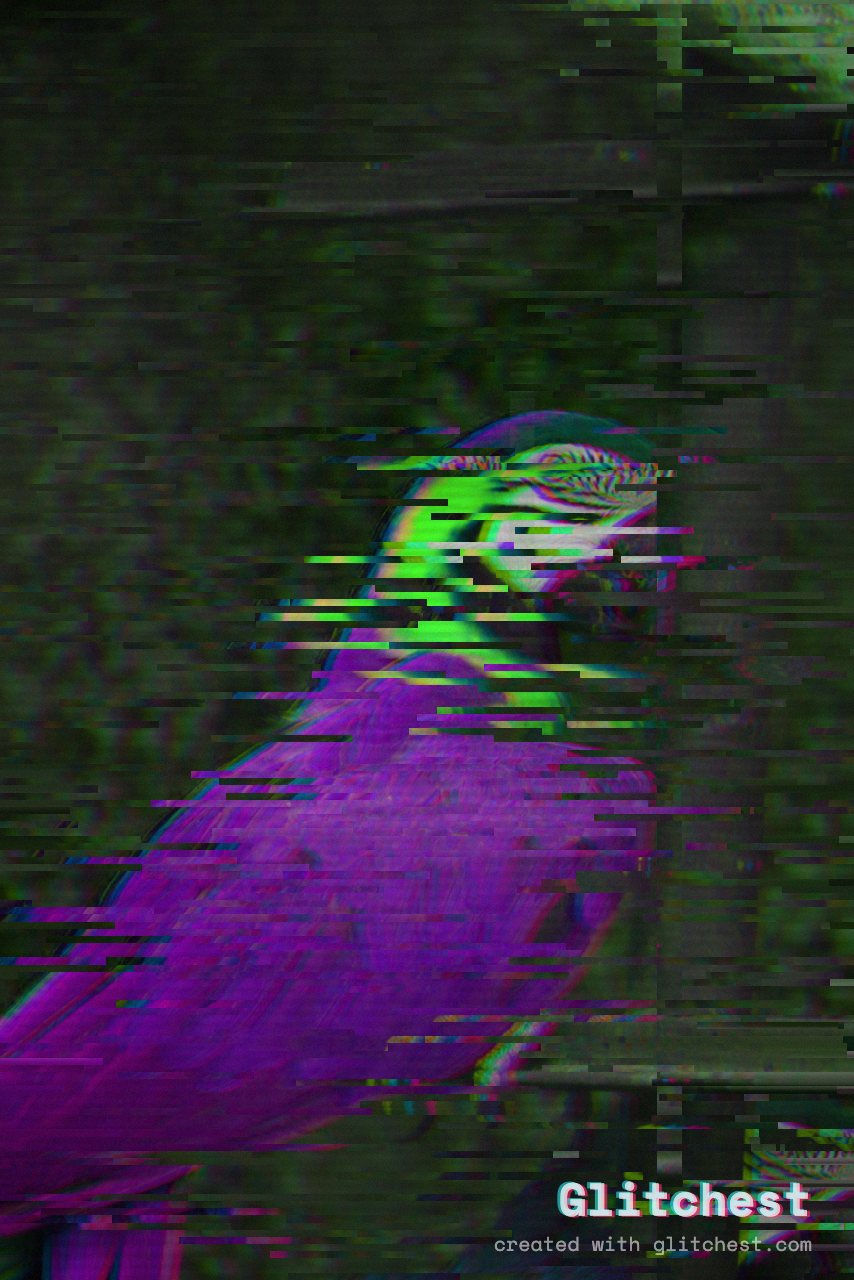
A striking YouTube channel banner is the first thing visitors see when they land on your page, making it crucial for setting the tone of your channel. If you create gaming, tech, synthwave, or retro-futuristic content, learning how to make a glitchy YouTube channel banner for free can elevate your branding instantly without needing expensive design software or complex plugins.
Why a Glitch Aesthetic Works for YouTube Banners
Glitch art combines high-contrast RGB color separation, scanlines, digital noise, and pixel displacement to create an energetic visual identity. On YouTube, where channel banners span desktop, mobile, and TV displays, a distorted cyber or analog look draws the viewer's eye immediately. By combining clean typography with heavy background artifacts, you signal to viewers that your content is modern, creative, and dynamic.
Unlike static stock templates, designing your banner in the editor allows you to tailor every pixel. You do not need to register an account, pay for subscription software. Everything runs locally inside your web browser using WebGL and WebCodecs technology.
Key Banner Dimensions to Keep in Mind
Before applying glitch filters, it is essential to design around YouTube's standard banner dimensions:
- Recommended Size: 2560 × 1440 pixels (16:9 aspect ratio).
- Mobile Safe Area: 1546 × 423 pixels located directly in the center. All logos, channel names, and upload schedules must stay within this zone.
- Desktop Display: 2560 × 423 pixels stretched horizontally.
- TV Display: The full 2560 × 1440 canvas is visible on smart TVs.
To ensure your text remains legible across every screen, we recommend glitching the background heavily while protecting your central text using shape masks.
Step-by-Step: Creating a Glitchy YouTube Banner for Free
- Prepare and Import Your Base Graphic: Create your primary banner graphic or channel background in your preferred design tool (or start with a high-res photo). Open the editor in your browser and drag your PNG or JPEG file straight into the workspace. Because files are processed directly in your browser without uploading to external servers, your artwork stays completely private.
- Choose an Atmospheric Glitch Preset: Select a starting point from presets such as Cyber Glitch, Y2K, Broken Monitor, Signal Jam, or VHS. Presets apply balanced combinations of chromatic aberration, horizontal tear lines, and digital noise in a single click.
- Isolate Channel Text with Rectangle or Ellipse Masking: Readability is essential for branding. Enable rectangle or ellipse masking in the mask controls and adjust the shape over your central logo or text box. Invert or position the mask so that heavy datamosh and signal noise are restricted to the banner margins, keeping your channel name clean and easy to read.
- Layer Effect Boxes on Timeline Lanes: Customize your look by dropping individual effect boxes onto timeline lanes. Place a Scanlines box along one lane, add a short Signal Jam box on another lane for localized disruption, and adjust the fade-in and fade-out parameters on each box to blend multiple textures seamlessly.
- Add Analog Character with the Time Machine Dial: Turn the Time Machine film-look dial to introduce authentic grain, warm color shifts, or aged tape texture. This blends digital computer glitches with vintage analog film traits.
- Export a Crisp PNG using Save Frame: Once your banner composition is finalized, click the Save Frame button to export a full-resolution PNG still image directly to your device.
Pro Tips for High-Impact Glitch Banners
1. Complement Your Video Thumbnails
A cohesive visual brand helps turn channel visitors into subscribers. If your channel banner uses neon cyan and magenta displacement, carry similar styling into your thumbnail graphics. You can apply matching analog VHS or digital corruption effects using our step-by-step guide on making VHS YouTube thumbnails.
2. Experiment with Y2K and Cyberpunk Aesthetics
Different glitch styles fit different channel niches. Gaming and tech channels benefit from sharp pixel sorting and cybernetic RGB splits, whereas lo-fi or vaporwave music channels suit softer analog decay. Explore our Y2K aesthetic guide to learn how early 2000s digital artifacts can elevate your channel artwork.
3. Keep High Contrast on Central Logos
Dark, moody glitch backgrounds pair best with bright neon or stark white lettering. If your background features heavy dark noise, apply a subtle drop shadow or stroke to your logo before importing, then use Glitchest to add subtle chromatic fringe around the edges.
Try it now — add this look to your own clip, free and in your browser.
Open the editor →FAQ
Can I make a glitchy YouTube banner without Photoshop?
Yes, you can create a complete glitchy banner for free directly in your web browser using Glitchest. Simply prepare your base graphic and use browser-based glitch effects and mask tools to customize your design.
What is the recommended size for a YouTube channel banner?
The ideal banner resolution is 2560 × 1440 pixels, with a central safe zone of 1546 × 423 pixels for text and logos. Designing around these dimensions guarantees your banner looks great on mobile, desktop, and TV displays.
Are there any export limits when saving my banner?
No — Save Frame exports a full-resolution PNG directly to your device, processed locally with no account or upload. Video exports carry no watermark.