VHS Effect for Video — Free, In Your Browser, No Upload
Applying a video to vhs effect online no longer requires physical tape decks or complex desktop software. Glitchest functions as a fast video to vhs converter online that processes your footage directly in your browser without uploading files to an external server. Simply load your clip, dial in tape noise and chromatic aberration, and export a finished MP4 or grab a single PNG frame.
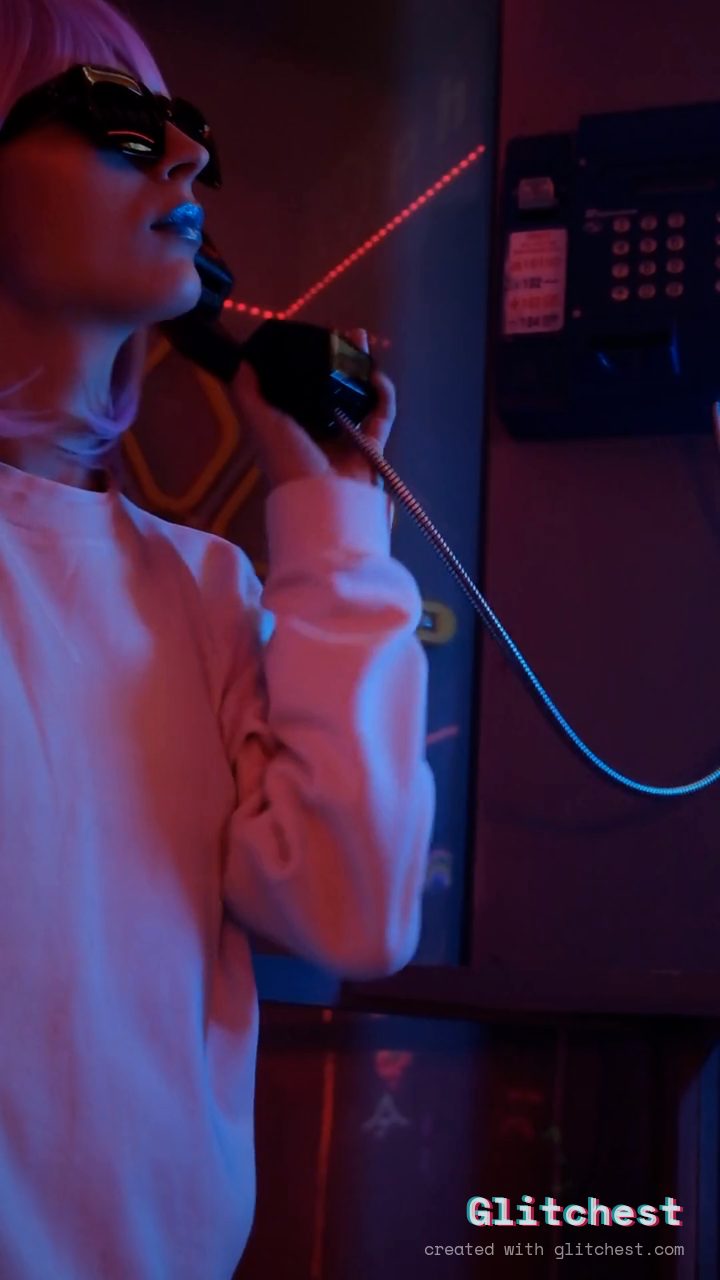 BEFORE
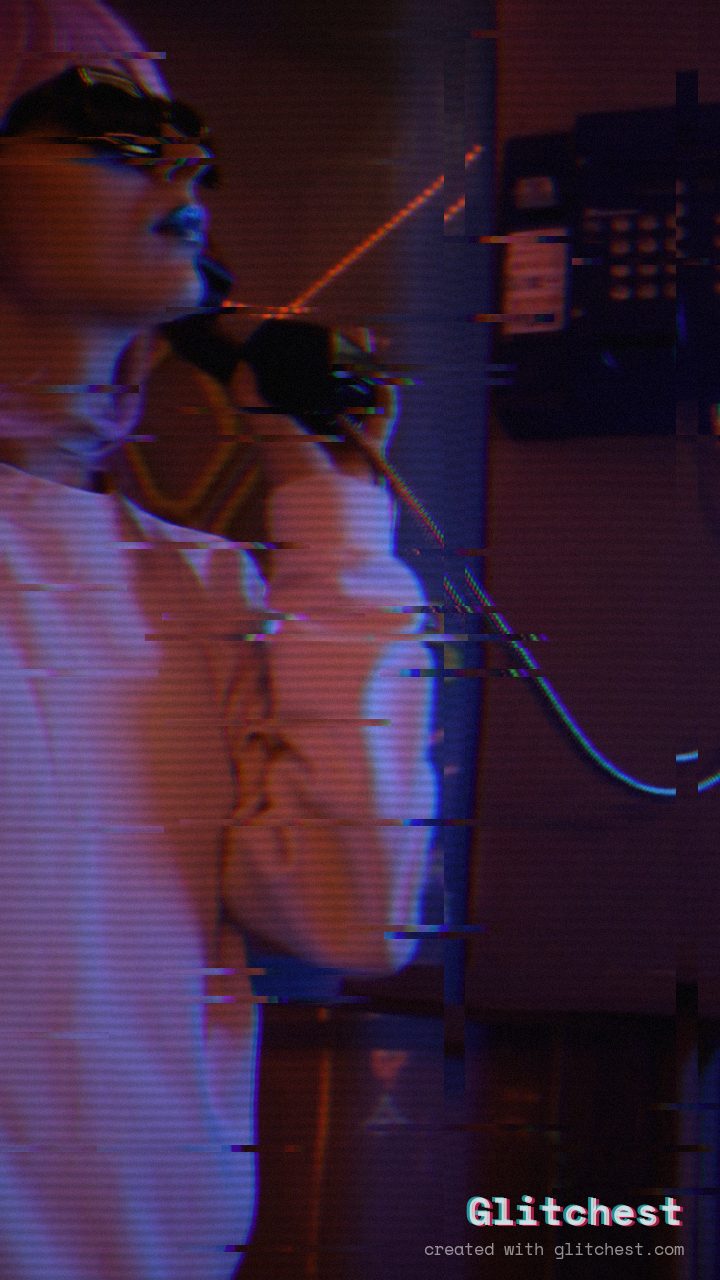 AFTER
AFTERWhat actually makes something look "VHS"
A believable VHS effect is a stack of small imperfections, not one filter. The ingredients that sell it:
- Tracking lines — horizontal bands that roll or jitter up the frame.
- Chroma bleed — colors, especially reds, smearing sideways past their edges.
- Tape wobble — a subtle horizontal shake, worse near the top and bottom.
- Softness & noise — reduced sharpness plus a fine layer of grain.
- Date stamp energy — that low-bitrate, slightly-crushed contrast.
Get two or three of these right and the brain fills in the rest.
Add a VHS effect in 4 steps
1. Open the editor and load your clip
Head to the Glitchest editor and drop in a video or image. Your file stays on your device — nothing is uploaded, so even long clips load instantly.
2. Start from the VHS preset
Pick the VHS preset. This lays down tracking lines, chroma bleed and wobble in one click so you're starting from a finished look instead of a blank slate.
3. Dial it to taste
Push the knobs until it feels right for your footage. A modern 4K clip usually needs more degradation to read as tape; grainy footage needs less. Nudge the wobble down if faces get hard to read.
4. Export an MP4 (with audio)
Hit Export. Glitchest renders a clean MP4 using hardware-accelerated WebCodecs and keeps your original audio track. Prefer a still? Use Save Frame for a PNG.
Make it feel like a specific era
"VHS" covers a lot of ground. If you want a particular decade, use the Time Machine dial: slide toward the 1980s for saturated, high-wobble tape, or toward the late 1990s for a cleaner, sharper camcorder look. It's the fastest way to match a reference without guessing at individual knobs.
Common mistakes to avoid
- Overdoing the tracking lines. If the subject disappears, dial back — subtlety reads as "real tape," extremes read as "filter."
- Forgetting audio. A pristine modern audio track under heavy VHS visuals breaks the illusion; a touch of lo-fi on the sound helps.
- Uploading to sketchy sites. You don't need to. Glitchest processes everything locally, so your footage never leaves your device.
Why do it in the browser
No install, no license key, no 720p export trap. Because Glitchest runs on WebCodecs, exports are fast and there's no server queue — and it works on desktop and mobile alike.
Fine-Tuning a Realistic VHS Filter for Videos
Most basic video filters overdo the glitching, making footage look digitally corrupted rather than genuinely vintage. To get a truly realistic VHS effect on video, subtle balance between color fringing, horizontal tape noise, and soft luminance degradation is key.
You can quickly dial in this look in the Glitchest editor:
- Start with a preset chip: Click the VHS preset chip above the canvas to drop a pre-configured effect box directly onto your timeline.
- Adjust with 0–100 knobs: Open the effect parameters to tweak tracking lines, noise intensity, and chromatic aberration knobs to match your clip's era.
- Control timing with fade handles: Drag the edges of the timeline effect box to set where the effect starts and ends, or use the fade handles to seamlessly ease the analog degradation in and out.
Once you are happy with the playback preview, click Save Frame to grab a single PNG still or hit Export to process your finished MP4 entirely within your browser.
VHS Effect Meaning and How to Get the Look Online for Free
The term VHS effect refers to the visual signature left by Video Home System analog magnetic tape, the dominant consumer video format throughout the 1980s and 1990s. Unlike clean digital pixels, VHS footage suffered from technical limitations: heavy chroma subsampling (color bleeding), visible horizontal scanlines, periodic tracking noise bands, and subtle luma jitter caused by uneven motor speed.
To apply a VHS filter to video online for free, open Glitchest and drag in your footage. You can start instantly by clicking one of the analog preset chips, which applies a baseline configuration across key parameters. From there, adjust the 0–100 knobs to balance color bleeding, phosphor bloom, tape grain, and line jitter to match the exact era of your project.
You can adjust the effect's duration directly on the timeline by dragging the effect box, or use the fade handles to smoothly blend the tape distortion in and out. When your retro look is dialed in, click Export to render an MP4 entirely on your device, or click Save Frame to grab a PNG still.
How to Use an In-Browser Video to VHS Converter Online
When you need to add a VHS effect to video online, waiting for large file uploads to remote rendering queues is inefficient. Opening the editor at Glitchest lets you transform modern digital footage into degraded analog tape directly on your own device using WebGL shaders.
Converting footage takes just a few steps inside the timeline interface:
- Load your media: Drag and drop a video file onto the canvas; processing happens locally so nothing leaves your machine.
- Apply tape settings: Click the VHS preset chip to load a balanced layer of magnetic noise, scanlines, and phosphor bleed onto the timeline.
- Fine-tune the knobs: Select the effect to reveal 0–100 parameter knobs, allowing you to increase tracking jitter, tweak color separation, or soften sharp digital edges.
- Shape duration: Drag the edges of the timeline effect box to span the entire clip, or pull the fade handles to seamlessly ease the tape degradation in and out.
Once the degradation matches the exact decade or style you want, click Export to render an MP4 video, or use Save Frame to download a high-resolution PNG still.
The exact settings
Start from the VHS preset, then set:
| Strength (master) | 46 |
| Glitch Rate | 18 |
| Glitch Width | 24 |
| Block Size | 40 |
| Chaos | 34 |
| Datamosh (trail) | 14 |
| Horizontal Wave | 44 |
| Vertical Wave | 20 |
| Vertical Shift | 10 |
| Vertical Shake | 12 |
| RGB Split | 46 |
| Hue Shift | 7 |
| Sepia | 12 |
| Noise | 30 |
| Scanlines | 56 |
| Flicker | 16 |
Everything else stays at its default — tweak it, then copy your own look as JSON or a link from inside the editor to share it.
Try it now — add this look to your own clip, free and in your browser.
Open the editor →FAQ
Can I add a VHS effect for free?
Yes. Glitchest adds VHS, tracking lines, color bleed and tape wobble for free in your browser, with no account.
Do I need to install software for a VHS effect?
No. Glitchest runs entirely in the browser using WebCodecs, so there is nothing to download or install.
Does the VHS effect work on a phone?
Yes. It works in mobile browsers that support WebCodecs, including Safari on iOS 16.4+ and Chrome on Android.
How can I add a VHS effect to my video for free?
You can apply a customizable VHS effect to your video using Glitchest's free web editor at /app/. It lets you add retro aesthetic elements like scanlines, color distortion, and tape noise without account sign-ups.
Do I need to upload my file to apply a video VHS effect?
No, Glitchest processes the VHS effect locally inside your web browser at /app/, meaning your media is never uploaded to an external server. This allows you to create retro VHS videos quickly, securely, and completely for free.
How can I add a VHS "INSERT" overlay to my video?
You can customize retro on-screen display text like "INSERT", "PLAY", or timestamps directly in the Glitchest editor alongside classic tape artifacts. All rendering happens locally in your browser without uploading your video file.