How to Add a CRT / Old TV Effect to Video Online
Adding a CRT effect to video online is the fastest way to turn clean digital footage into authentic retro broadcast footage directly in your browser. Glitchest runs entirely on your local hardware with no uploads or accounts required, letting you process clips with zero waiting. Drop in your footage, customize the tube television aesthetic, and render an MP4 straight from your timeline.
 BEFORE
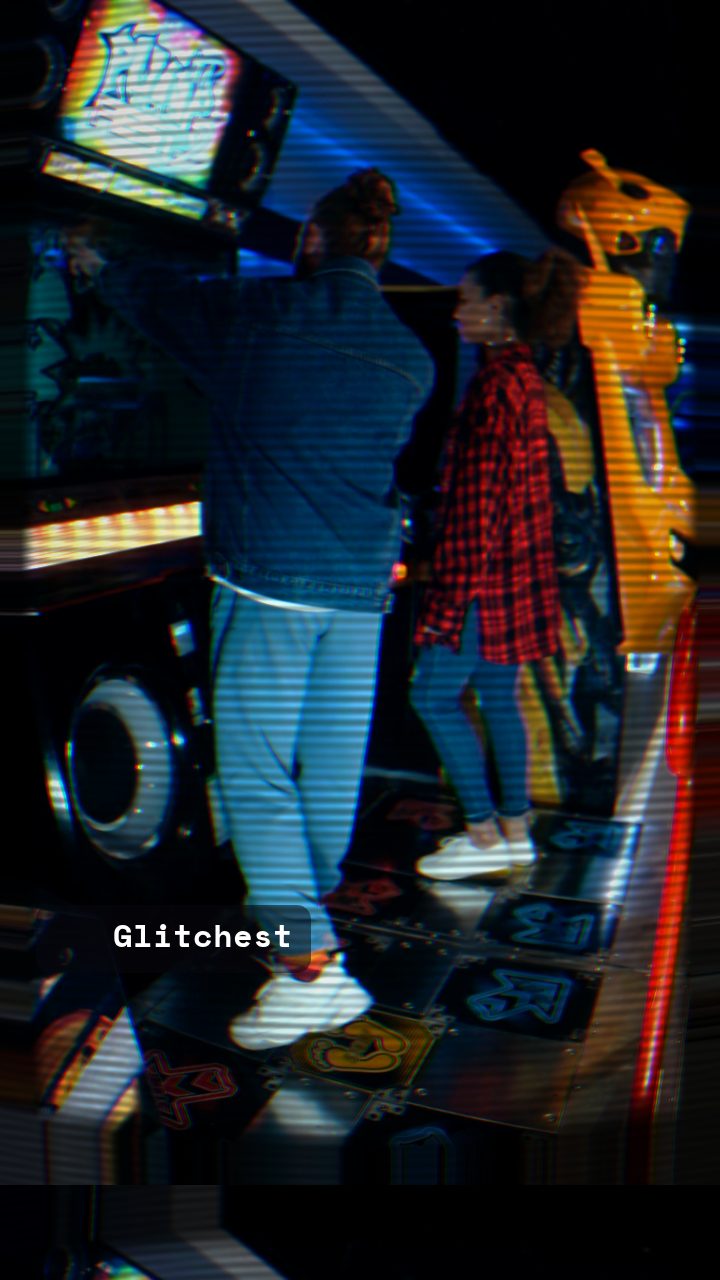 AFTER
AFTERWhat actually makes something look "CRT"
Before you start stacking effects, it helps to know what your eye is actually reading when a video looks like it came off an old television. A convincing CRT / old-TV look is really a handful of small details working together:
- Scanlines — the fine horizontal lines that come from how a tube TV drew each frame line by line. This is the single biggest tell.
- Phosphor glow — bright areas bloom and bleed slightly into their surroundings, giving highlights that soft, warm halo.
- Signal noise — a light grain or static that sits over the whole image, like a slightly weak broadcast signal.
- Soft focus — CRTs were never razor sharp, so a gentle blur reads more authentically than a crisp modern frame.
- Signal wobble — occasional horizontal jitter, roll, or color shift that hints the picture isn't perfectly locked.
- Curvature vibe — real tubes bulged at the edges. You don't need a literal warp; a slight vignette and edge darkening sells the shape.
You rarely want all of these cranked to maximum. The trick is subtlety — a little of each, layered together, reads as "old TV." Too much of any one and it reads as "broken."
Add a CRT effect in Glitchest, step by step
Here's the practical workflow. Everything runs locally in the browser, so your clip never leaves your device.
- Open the editor. No account, no install — it loads straight in the browser.
- Load your clip. Drop in the video or image you want to age. Nothing is uploaded to a server; it stays on your machine.
- Add scanlines. This is your foundation. Start with a moderate line density and low opacity so the lines are visible but not overpowering.
- Stack a glow. Layer a soft glow or bloom on top so highlights bleed the way phosphor does. Keep it gentle — you want warmth, not a smear.
- Add noise. A thin layer of signal noise ties the look together and hides the "too clean" feel of modern footage.
- Soften and wobble. Introduce a touch of blur for that tube softness, then a small amount of horizontal instability so the signal feels alive rather than static.
- Tune it. Dial each layer back until the effect feels lived-in rather than loud. Give an effect box a fade-in, or lay down a few short boxes, if you want the effect to ramp in or pulse across the clip.
- Export MP4. When it looks right, export. You get a clean MP4 with rendered locally.
Presets and fine control
If you'd rather not build it up by hand, start from a preset that's already in the CRT ballpark and adjust from there. Presets get you 80% of the way; the tuning is where you make it yours. The Time Machine dial is handy for pushing the whole frame toward a more degraded, older-signal feel in one move. And if you just want a single still, Save Frame exports a PNG.
Where the CRT look works best
A CRT treatment is more than a novelty filter — it does real work in a few situations:
- Under titles and lower-thirds. A softly glowing, scanned background makes text pop and instantly sets a retro tone.
- Retro intros. A few seconds of old-TV roll and static is a classic way to open a video before it snaps into your real footage.
- Music and mood pieces. The warmth and instability of a tube signal pairs naturally with lo-fi, synthwave, and nostalgic edits.
Related looks worth stacking
The CRT effect overlaps with a couple of neighbors, and they combine well. If scanlines are what you're really after on their own, see how to add scanlines to video for a focused walkthrough. And for a tape-warped, tracking-error cousin of the CRT look, try a free VHS filter online — layering a light VHS pass under your CRT effect deepens that analog feel.
All of it is free, runs in the browser, and never asks you to upload your footage or sign up. Load a clip in the editor, stack your layers, and export a clean MP4 when the old-TV glow looks right.
How to apply a CRT effect to video online
Creating an authentic tube television look in your browser doesn't require heavy desktop software or cloud rendering queues. In Glitchest, your video stays entirely private on your machine while WebGL shaders simulate authentic analog display characteristics in real time.
To get started, drag and drop your video file into the editor. Select the CRT preset chip to drop an effect box onto your timeline, then fine-tune the look using the 0-100 parameter knobs:
- Scanlines and Phosphor: Adjust the intensity and spacing knobs to simulate cathode ray grille patterns.
- Curvature and Vignette: Dial in screen bend knobs to mimic the bulbous glass front of an old television set.
- Noise and Roll: Add subtle signal interference and sync drift for an unstable broadcast feel.
Trim the effect box and pull its fade handles on the timeline if you want the CRT texture to fade in or out during specific scenes. Once your clip looks right in the live preview, click Export to save an MP4 video, or use Save Frame to capture a PNG still.
The exact settings
Start from the CRT TV preset, then set:
| RGB Split | 18 |
| Brightness | 53 |
| Contrast | 58 |
| Scanlines | 40 |
| Flicker | 10 |
| CRT Curve + Glow | 74 |
| Vertical Roll (TV) | 6 |
Everything else stays at its default — tweak it, then copy your own look as JSON or a link from inside the editor to share it.
Try it now — add this look to your own clip, free and in your browser.
Open the editor →FAQ
What sells a CRT look?
Scanlines, phosphor glow, slight noise and soft focus, plus a touch of signal instability.
Is the CRT effect free?
Yes — the CRT preset and its scanline, curvature and glow knobs are free to use and export, with no account required.
Does it work on mobile?
Yes, in browsers that support WebCodecs.
How can I apply a CRT video effect online?
You can add a retro CRT or old TV effect to your videos directly in your browser using Glitchest at /app/. Because all processing happens locally on your device, you don't need to create an account or upload your files to a server.
How can I add a CRT effect to a video online?
You can apply a retro CRT scanline and old TV effect to your video directly in your browser using Glitchest at /app/. The editor processes your media locally on your device with no video uploads or account creation required.
How do I add a CRT effect to a video online?
You can apply a vintage CRT scanline and TV distortion effect using Glitchest at /app/. The editor runs entirely in your browser, allowing you to process videos instantly for free without creating an account or uploading files to a server.