Datamosh Bloom Look: Smear Pixels Across Cuts
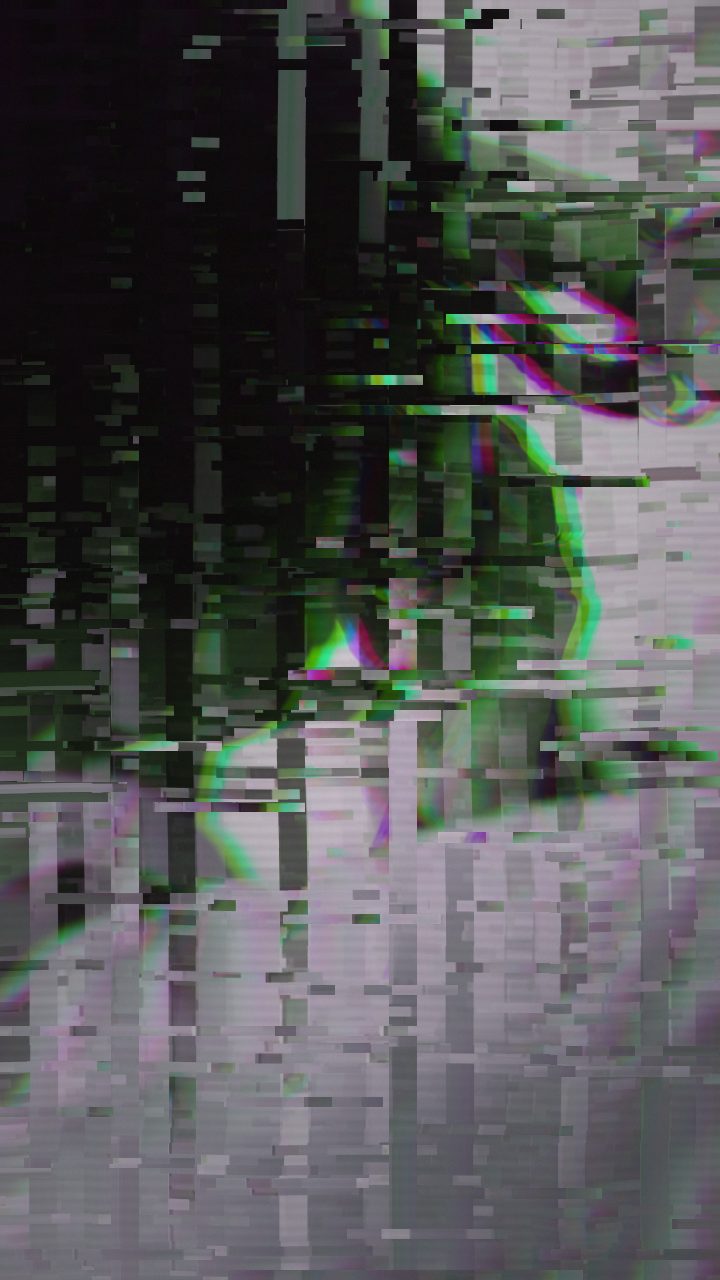
Datamosh Bloom turns hard cuts into liquid velocity. By stretching pixel displacement trails while separating saturated chromatic channels, this recipe dissolves sharp frames into blooming, luminous smears that pull the eye forward. It delivers the signature feeling of broken frame compression without collapsing your composition into unreadable mud.
 BEFORE
 AFTER
Why this look works
Balancing Persistent Trails with Chromatic Smear
The core engine of this look is the interplay between high Datamosh trail persistence and wide RGB Split. Instead of letting clean macroblocks drift across a flat plane, Datamosh trail forces previous frames to melt forward into incoming footage. When paired with moderate Hue Shift and split channels, bright edges bleed outward into neon streaks, creating that radiant bloom illusion without washing out midtones.
Restraint is what keeps the effect punchy rather than chaotic. Keeping master Strength and Glitch Rate controlled ensures the smearing hits rhythmically rather than dominating every millisecond. If you push Chaos or Block Size too high, individual pixels lose structural continuity and turn into jarring digital confetti, breaking the fluid, dreamy decay that makes the bloom compelling.
The recipe
Start from the Datamosh preset, then set:
| Strength (master) | 34 |
| Glitch Rate | 20 |
| Glitch Width | 40 |
| Block Size | 44 |
| Chaos | 22 |
| Datamosh (trail) | 72 |
| Horizontal Wave | 14 |
| Vertical Wave | 10 |
| Vertical Shift | 24 |
| Vertical Shake | 18 |
| RGB Split | 54 |
| Hue Shift | 26 |
| Noise | 10 |
| Scanlines | 15 |
| Flicker | 12 |
Everything else stays at its default — tweak it, then copy your own look as JSON or a link from inside the editor to share it.
What footage suits it
Datamosh Bloom thrives when fed directional motion and bold contrast differences across hard cuts:
- High-contrast lighting: Vivid highlights against deep shadows provide crisp edges that bloom dramatically as the smear carries over.
- Whip pans and fast action: Quick directional camera movement feeds the trail buffer with sweeping motion vectors.
- Hard-cut scene transitions: Switching from a dark frame to a bright subject creates maximum optical bloom across the seam.
Avoid slow, low-contrast footage in flat lighting, as soft edges create muddy gray smudges instead of luminous color streaks.
Common mistakes
- The screen turns into an unreadable solid smudge: Datamosh trail is lingering too long over stagnant footage; pull down the Datamosh trail slider until the underlying action stays legible.
- Edges look jagged and harsh rather than glowing: Block Size is dominating the tear; reduce Block Size so the displacement breaks down into smaller, fluid ribbons.
- Color separation feels nauseating and muddy: Chromatic dispersion is overpowering the frame luminance; drop RGB Split back toward moderate levels to re-anchor the silhouette.
When to use it
Because of its directional momentum, Datamosh Bloom works best as a transitional punctuation mark:
- Beat-synced drops: Fire the smear on snare snaps or heavy bass drops to give electronic music tracks tactile weight.
- Streetwear and fashion reels: Bridge fast model turns and outfit switches with liquid color bleeds.
- Edgy brand reveals: Wipe away corporate typography into saturated trails before resolving the final logo.
When assembling your sequence in the editor, try cutting straight from a vibrant smear into high-energy strobe frames using our Shake and Flicker: Strobing Rave Video Cut to maximize rhythmic impact across the drop.
Try it now — add this look to your own clip, free and in your browser.
Open the editor →FAQ
Why is my datamosh smear staying on screen instead of fading?
If the smear lingers indefinitely, your source clip may lack motion or the Datamosh trail slider is set too high. Lower Datamosh trail slightly or transition into a clip with faster movement to clear the trailing buffer.
How do I push the blooming colors toward warm neon or cyber tones?
Nudge the Hue Shift slider to rotate the chromatic spectrum into magenta, electric cyan, or golden amber without disrupting your displacement geometry.
Can I apply Datamosh Bloom effectively to a still photo?
Yes, though you will want a hint of Horizontal Wave or Vertical Shake active to generate the continuous motion vectors required for the pixels to smear.