7 Glitch Effects That Make Instagram Reels Pop
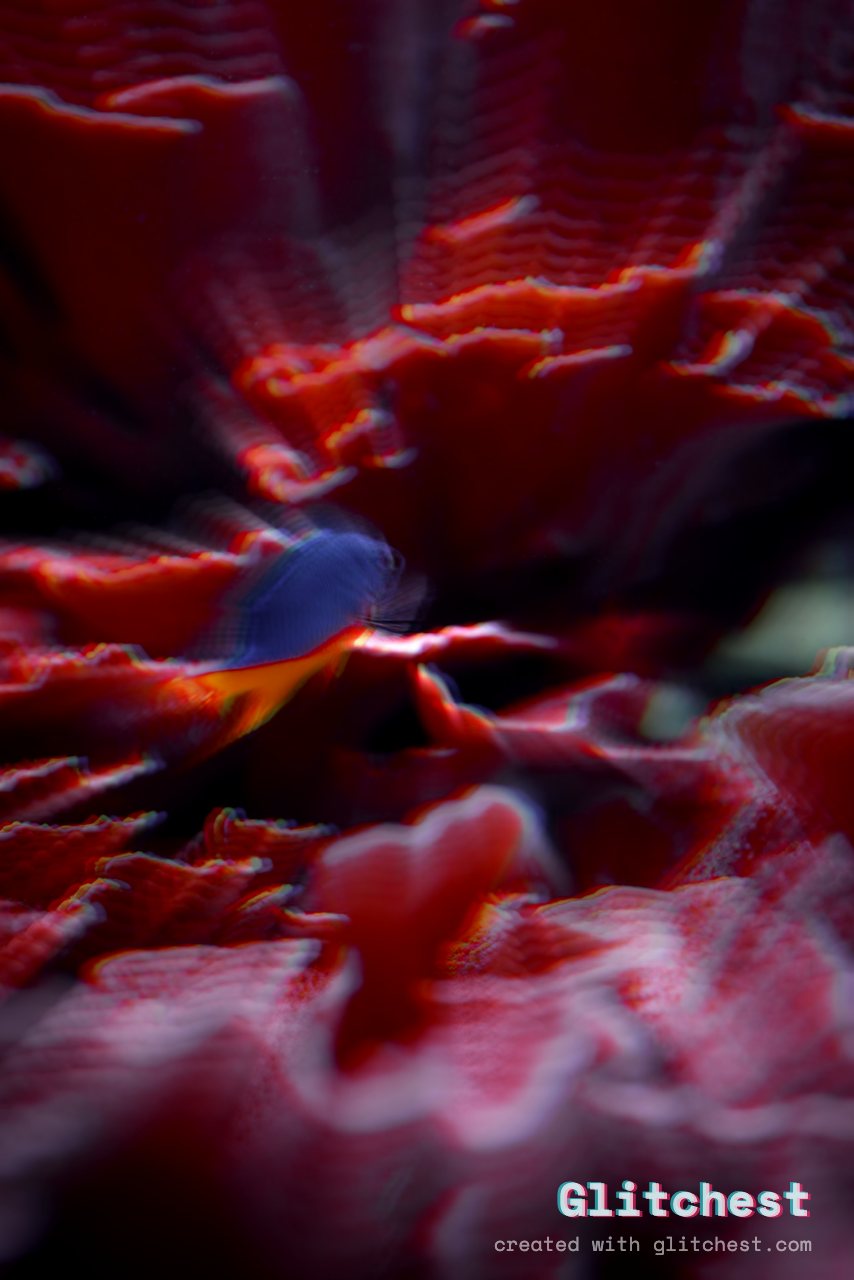
A Reel lives or dies in the first half-second. Glitch effects are one of the fastest ways to break the scroll pattern, but only if you use them with intent. Here are seven effects that actually work on Instagram, and how to dial each one in with Glitchest — free, in your browser, no upload.
You can build every effect below in the editor. Nothing installs, nothing uploads to a server, and it runs on your phone as long as the browser supports WebCodecs. Load a clip, pick a preset, and adjust from there.
1. First-frame hard glitch (the hook)
The single most useful trick for Reels: put a hard glitch on frame one. Instead of easing in, hit the viewer with a torn, corrupted opening frame that resolves into clean footage a beat later. In Glitchest, start from the Signal Jam or Broken Monitor preset and drop a short effect box right at 0:00 with no fade so it hits hard, then nothing after. That contrast — chaos snapping into clarity — is what stops a thumb mid-scroll.
2. RGB split / chromatic aberration
Separating the red, green and blue channels gives you that fringed, offset look that reads as "digital" without destroying the image underneath. It stays legible, so it's safe over faces and text. Reach for the Cyber Glitch preset and nudge the RGB split knob up gently — a little goes a long way. Push it hard only on accent frames, not the whole clip.
3. Datamosh on the beat
Datamosh smears motion between frames into those melting, bleeding transitions. It looks best when the smear lands exactly on a beat drop or a cut in your audio. Use the Datamosh preset and place a short effect box right where the beat hits with a quick fade out, then let it settle. Timing the bloom to the music is what makes it feel intentional instead of broken. There's more on this in how to make a glitch transition.
4. VHS wobble
The warm, unstable VHS look adds nostalgia and softens harsh digital footage. Horizontal wobble, tracking lines and a slight color bleed sell the analog feel. Start with the VHS preset and keep the wobble low and constant across the whole Reel rather than spiking it — VHS works as a mood, not a jump scare. The Time Machine dial is a quick way to lean the whole clip further toward that era.
5. Scanlines under text
Scanlines are a subtle way to unify a clip and make on-screen captions feel designed rather than pasted on. Drop the scanline intensity low so your text stays crisp, and use masking to keep the lines off the caption itself if they compete for attention. Try the Dead Channel or Y2K preset for the retro-monitor version, then mask the text area clean.
6. Signal loss / static cut
A one-frame burst of static or a dropout to black is a punchy way to hide a cut or punctuate a punchline. Instead of a soft dissolve, cut to noise for a single frame and back. In Glitchest, drop a short Signal Jam or Dead Channel box spanning one or two frames only, with no fade so it snaps on and off. Short is the whole point — hold it too long and it reads as a mistake.
7. Pixel sort streaks
Pixel sorting drags bands of color across the frame into painterly, streaked distortion. It's the most stylized effect here, so it works best as an accent — a transition wipe, a title reveal, or a single held moment. Layer it over the Cyber Glitch preset and use masking to confine the streaks to one region, like the top third behind a headline, so the rest of the frame stays readable.
Timing beats intensity
If you remember one thing, make it this: where an effect lands matters more than how strong it is. A subtle glitch on the exact beat outperforms a heavy one thrown on randomly. Use the effect-box timeline to place your hits deliberately, keep the clean stretches genuinely clean, and let the contrast do the work. The same logic carries over to other platforms — see glitch video for TikTok if that's where your clips are headed too.
When a frame looks right, hit Save Frame PNG to grab a still for your cover image, then export the full clip as MP4. Everything renders locally in your browser, so there's no upload, no account.
Try it now — add this look to your own clip, free and in your browser.
Open the editor →FAQ
Which glitch effect is best for Reels?
A hard glitch on the very first frame stops the scroll; datamosh timed to the beat keeps people watching.
Are these glitch effects free to use on Reels?
Yes — every preset here is free to apply and export for Reels, with no account and no paywall; exports carry no watermark.
Does it work on my phone?
Yes — Glitchest runs in mobile browsers that support WebCodecs.